
Removing Away\Inactive time

Published by

on


When you are on one of those extended lunch breaks it can be really annoying that Lync reports the time you have been away.
Before
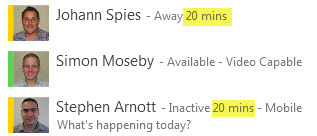
After
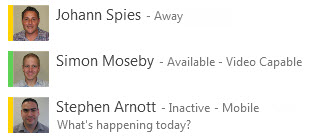
This can be disable on a per Lync Front-End Server basis as follows:
Create a new text file on the Lync front-end server in the following directory.

Lync 2010 %Installation Folder%\Microsoft Lync Server 2010\Server\Core\
Lync 2013 %Installation Folder%\Microsoft Lync Server 2013\Server\Core\

The name of the text file has to be : Rtcaggregate.exe.config include the following configuration entry :


After the text file is saved restart the Front-End Server service (RtcSrv) to apply the changes.

3 responses to “Removing Away\Inactive time”

  1. kk Avatar

    i couldn't found the installation path you mentioned above…
    there is no Lync 2013 %Installation Folder%\Microsoft Lync Server 2013\Server\Core\
    only having Lync 2013 %Installation Folder%\Microsoft Lync..
    what to do now?

    Like

  2. Paul B Avatar

    Thanks for your comment, the full path assuming default installation on Lync 2013 Front End is C:\Program Files\Microsoft Lync Server 2013\Server\Core

    PB

    Like

  3. urvashi sedani Avatar

    This requires to have admin rights on the machine.But Office Environment doesnt have Admin ryts for normal users like us.Then how can we impliment this without admin rights?

    Like

Leave a reply to urvashi sedani Cancel reply